
The biggest barrier to any new tool is the cold start. You sign up, you see an empty contact list, and you think: “I’m not going to manually add 300 people.” So you don’t. And the tool sits unused.
We’ve watched this pattern play out countless times. A professional signs up for BlaBlaNote, sees the value proposition, even records a few voice notes. But without contacts in the system, there’s no one to link notes to, no one to set follow-up reminders for, no relationship context to build on. The tool feels hollow, not because it lacks features, but because it lacks the data that brings those features to life.
We built contact import to eliminate that barrier entirely.
Google Contacts
Connect your Google account and BlaBlaNote pulls in your contacts: names, emails, phone numbers, companies, job titles, photos. All or selected, filtered by group or label if you want. The import takes seconds, and when it’s done, your network is already in the system.
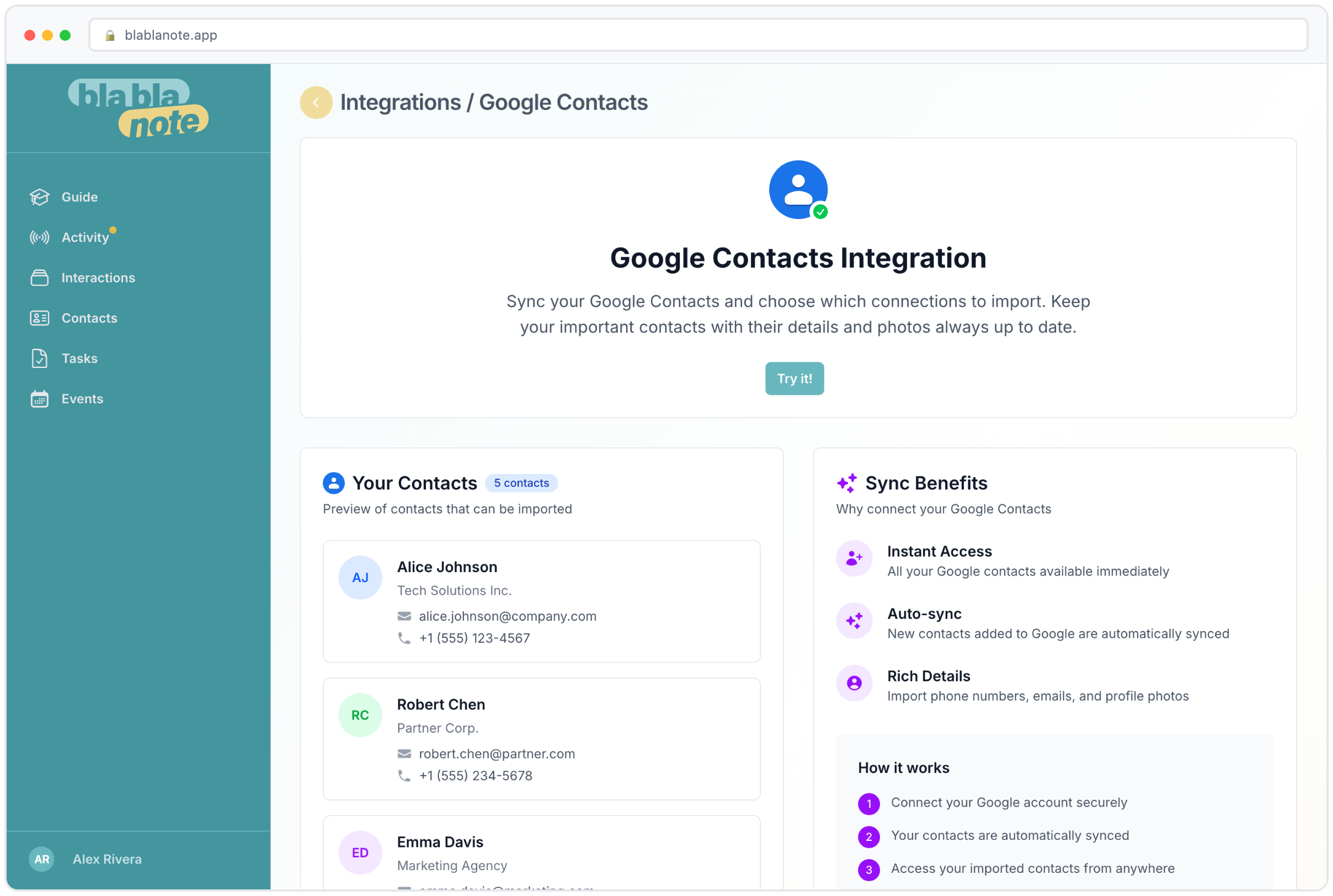
How the Google import works
The process is straightforward. In BlaBlaNote, navigate to Settings > Imports > Google Contacts. Click “Connect Google Account” and you’ll be taken through Google’s standard OAuth flow, the same kind of permission screen you’ve seen when connecting any app to your Google account. Grant BlaBlaNote read access to your contacts, and the import begins.
You can choose to import all contacts or select specific groups. If you’ve organized your Google contacts into labels (Clients, Partners, Personal, etc.), you can import just the groups that are relevant to your professional life. This is useful if your Google account mixes personal and professional contacts and you want to keep BlaBlaNote focused on work relationships.
The import pulls everything Google has: full names, email addresses (all of them, not just the primary), phone numbers, company names, job titles, physical addresses, birthdays, and profile photos. All of this data populates the contact profiles in BlaBlaNote, giving you a rich starting point for each relationship.
BlaBlaNote detects duplicates and prompts you to merge when it finds overlap. So if you’re importing Google contacts alongside LinkedIn connections, the system keeps things clean instead of creating a mess of duplicate entries. The duplicate detection works on multiple signals: matching email addresses, matching phone numbers, and fuzzy name matching. When a potential duplicate is found, you see both records side by side and can choose to merge, keep separate, or skip.
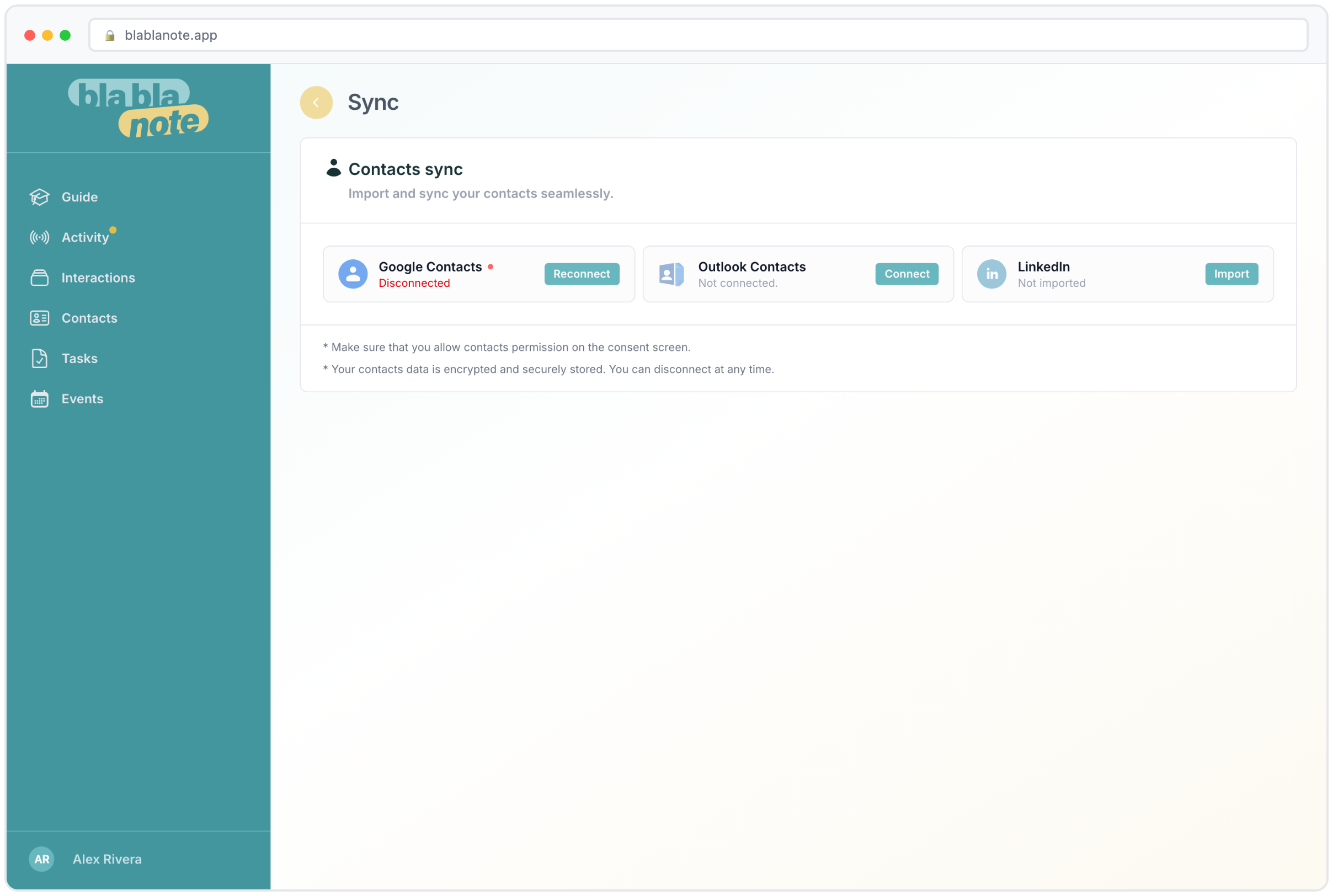
What happens after the import
For professionals who’ve been using Google Workspace for years, this is a one-click migration. Your accumulated network, clients, colleagues, partners, vendors, becomes the foundation of your BlaBlaNote system. From there, every interaction you record and every meeting you prepare for has contacts to link to from day one.
Once your contacts are in BlaBlaNote, the system’s other features immediately come to life. The contact profiles are ready to be enriched with interaction history. You can set follow-up cadences on key relationships right away. When you record a voice note about a client, you can link it to their profile. When you prepare for a meeting, the participants are already in your system with their professional details attached.
If any of your Google contacts include birthday information, those dates are imported too. BlaBlaNote can immediately start reminding you of upcoming birthdays, giving you one of the easiest relationship-building tools from day one.
Outlook Contacts
If your organization runs on Microsoft, the same flow works with Outlook. Connect your Microsoft account, select which contacts to import, and they flow into BlaBlaNote with the same data: names, emails, phones, companies, job titles, photos. Same duplicate detection, same clean result.
Enterprise-ready from the start
For enterprise teams standardized on Microsoft 365, this means the transition to BlaBlaNote doesn’t require any data migration project. Connect, import, done. No CSV exports, no manual data cleaning, no IT department involvement for basic setup. The OAuth flow respects your organization’s security policies, and only contact data is accessed, not emails, files, or calendar events (calendar integration is a separate feature with its own permissions).
Combined with Outlook Calendar integration, your meetings and contacts are both in the system from the first day. This means you can immediately start getting AI-powered meeting preparation briefs with participant context pulled from your imported contacts.
For teams in regulated industries where data handling matters, the import is a read-only operation. BlaBlaNote reads your contact data once and creates independent records. It doesn’t maintain a live sync that continuously accesses your Outlook account. You control when and what gets imported.
A starting point, not a copy
The import is a one-time sync. Your contacts are copied into BlaBlaNote, where they become independent records you can enrich, tag, link to interactions, and track with follow-up cadences. If you add new contacts in Google or Outlook later, you can re-import to bring them in.
This design is intentional. BlaBlaNote doesn’t interfere with your existing address book. It reads from it once and then builds on top. You can add relationship notes, set important dates, link interactions, apply tags, and everything that makes a contact in BlaBlaNote richer than a name in an address book.
Building on the foundation
Think of the import as laying the foundation. Your Google or Outlook contacts provide the basic structure: who you know, how to reach them, where they work. Everything you do in BlaBlaNote after that adds layers of intelligence on top.
The first layer is professional enrichment. If you also import from LinkedIn or use the browser extension, your contacts gain career histories, skills, education, and professional backgrounds.
The second layer is interaction history. Every voice note, phone call debrief, meeting note, and messaging capture that references a contact gets linked to their profile. Over weeks and months, each contact accumulates a rich timeline of your relationship.
The third layer is relationship intelligence. Follow-up cadences, important dates, tags, custom notes, and AI-generated insights transform a simple contact record into a comprehensive relationship profile. This is the layer that makes BlaBlaNote fundamentally different from an address book.
None of these layers are possible without the foundation. The import gives you that foundation in seconds.
Multiple sources, one system
Import from Google. Import from Outlook. Import from LinkedIn. Add contacts from Telegram or WhatsApp. Create them manually. Save them from the browser extension. However they get in, they all land in the same unified system.
Why unification matters
For people who’ve built their network across multiple platforms over the years, this convergence is the whole point. Instead of relationship context scattered across Google, LinkedIn, Outlook, and your memory, everything lives in one place. Searchable, linked to conversations, and enriched with the intelligence that makes each contact genuinely useful.
Consider a typical professional’s contact landscape. Their Google account has 400 contacts accumulated over a decade. Their LinkedIn has 1,200 connections. Their Outlook at work has another 200 work-specific contacts. There’s significant overlap, but also significant gaps. Google has personal details and phone numbers that LinkedIn doesn’t. LinkedIn has professional context that Google doesn’t. Outlook has corporate contacts that neither platform has.
When you import all three into BlaBlaNote, the duplicate detection identifies the overlaps and merges them. The result is a single, comprehensive network where each contact has the best available data from every source. A contact might have their phone number from Google, their job title from LinkedIn, and their corporate email from Outlook, all merged into one profile.
This unified view is what enables features like smart search (“find everyone I know who works in healthcare”), relationship mapping (“who do I know at this company?”), and intelligent meeting preparation (“here’s the full context on everyone in tomorrow’s call”). None of these work well when your contacts are fragmented. They all work beautifully when everything is in one place.
Get started in minutes
The import takes less time than reading this article. Connect your account, select your contacts, and you’re done. From an empty tool to a fully populated network in minutes. That’s how onboarding should work.
For the best starting experience, we recommend this sequence:
- Import from Google or Outlook first. This gives you the broadest base of contacts with basic information.
- Import from LinkedIn. This adds professional context and catches connections that might not be in your address book.
- Set up the browser extension. This captures new contacts going forward as you browse.
- Connect WhatsApp or Telegram. This gives you the most frictionless capture channel for daily notes.
By the time you’ve completed these four steps, which takes under 30 minutes total, you have a fully equipped relationship management system. Your contacts are imported, your capture channels are connected, and every interaction from this point forward builds on a solid foundation. The cold start problem is solved, and BlaBlaNote becomes the single place where your professional relationships live, grow, and thrive.